Inspect, compare and rewrite history in ddugit
Everything that looks back: what a commit changed, how two points in history differ, who wrote a line, and the tools that change past commits or take you back to where you were.
Updated
Most of this chapter starts from one place: a commit on the branch map. Click it to read it, right-click it to act on it. Entries that don't apply to that commit stay in the menu but are greyed out, so you can always see what exists.
The inspector
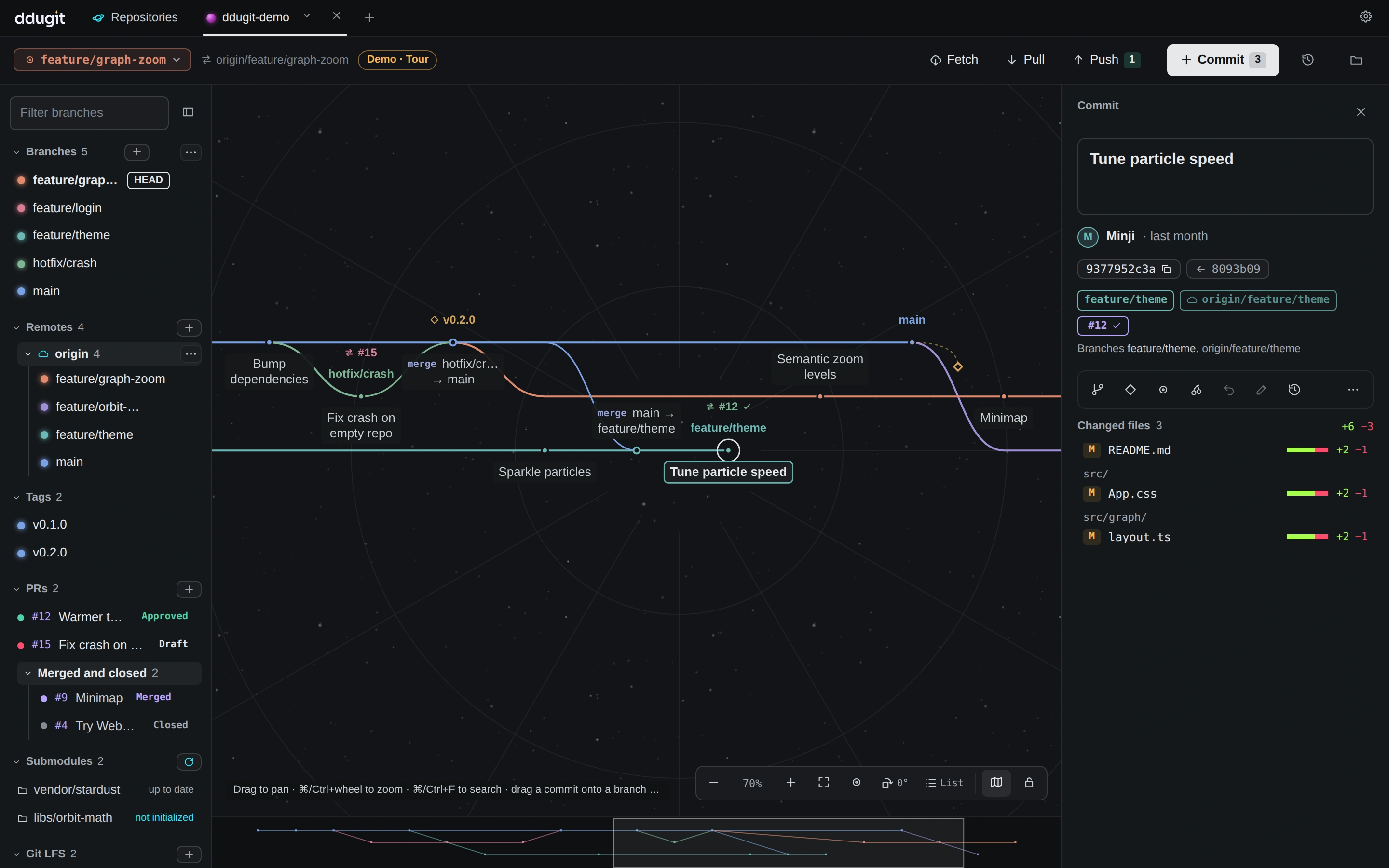
Click a commit and the inspector opens on the right. From the top, it shows:
- The whole commit message, summary first.
- The author and how long ago, with the exact time on hover. Signed commits get a badge: Signed, Signed (unverified) when this computer can't check the key, or Bad signature. Hover it to see who signed and with which key.
- The commit ID (click to copy) and its parents. Click a parent to move to it; a merge commit has two.
- Branches, tags and pull requests that point at the commit, and under Branches the branches whose history contains it.
- A toolbar with the most common actions. The More button (⋯) opens the full commit menu, the same one you get by right-clicking the commit on the map.
- Changed files, grouped by folder, with lines added and removed.
The diff sheet
Click a file under Changed files to open the diff sheet under the graph: the commit's files on the left, the selected file's unified diff on the right. Press ] and [ for the next and previous file and Esc to close. Drag the sheet's top edge to make it taller. Binary files and files that only changed mode or name say so instead of showing lines, and files stored in Git LFS show the pointer's size and object ID before and after.
The same sheet shows your uncommitted changes, where you can also stage single hunks and lines: see Commits, staging and stashes.
Compare two revisions
Comparing opens the diff sheet with the title Compare and the two sides in its header.
- A branch with yours: right-click a branch (in the sidebar or its label on the map) and choose Compare with <your branch>. You see what that branch adds since the two split, like a pull request shows it (
git diff HEAD...branch). - A commit with HEAD: right-click the commit and choose Compare with HEAD.
- Any two commits: right-click the first and choose Select for compare. A banner says which commit you picked. Right-click the second and choose Compare with selected <sha>. The banner also has Compare with HEAD and Cancel.
In the sheet, switch between Since they split (changes on the second side since the merge base) and Tip to tip (the plain difference between the two snapshots). Swap sides reverses the direction. Renamed files are shown as renames.
File history, blame and old versions
Right-click a file in the inspector's changed files for everything about that one file.
File history
Show this file's history lists every commit that changed the file, following it through renames. A banner says how many commits changed it. Newer and Older step through them on the map, Blame opens the blame sheet at the selected commit, and Close ends it.
Blame
Show who last changed each line (blame) opens the file as of that commit, in blocks of lines with the commit, author and date of their last change. Blue is newer, red is older. Click a block's left margin to go to its commit on the map.
Open, save or restore a version
- Open this version opens a read-only copy of the file as that commit had it, in your editor if you set one, otherwise in the default app.
- Save this version as… writes that copy wherever you choose. The suggested name includes the short commit ID, such as
app (4c1e9b2).ts. - Restore file to this commit puts the file in your working tree back to how this commit left it. Restore file to before this commit uses the commit's parent instead, which undoes what this commit did to the file. Either way the change is staged, ready to commit. If the file didn't exist at that point, restoring removes it.
Cherry-pick and revert
To copy a commit onto another branch, hold Alt (⌥ on a Mac) and drag it onto that branch's tip, or right-click it and choose Cherry-pick onto <your branch>…. The dialog says what will be copied, and if the target isn't checked out, that ddugit checks it out first. The original commit ID is recorded in the new commit's message.
To pick several, ⌘/Ctrl-click commits on the map (Shift-click picks a line of them), then right-click one of them:
- Cherry-pick N commits onto <branch>… applies them oldest first. It's unavailable when some of them are already on your branch; the menu says how many.
- Revert N commits… adds commits that undo them, newest first.
- Unpick N commits clears the selection.
Revert commit… undoes one commit on your branch with a new commit. For a merge commit the entry reads Revert merge commit…, and the dialog asks Which side should stay?: pick Parent 1 (usually the branch you merged into) or Parent 2. Each option shows the parent's ID, message and branches.
If a pick or revert stops on conflicts, a banner offers Resolve conflicts, Continue, Skip and Cancel. The step-by-step version, and the backport sheet for many fixes at once, are in the cherry-pick and backport guide.
Rearrange and edit past commits
Rearrange commits after this… (rebase -i) on a commit's menu opens a list of the commits after it to reorder, squash, fix up or drop. Shift-dragging a commit onto another opens the same list with that move made. See the interactive rebase guide.
To change one older commit without the full list, right-click it:
- Edit message… rewrites its message.
- Change author… sets a new name and email.
- Split commit… splits it in two by files: tick the files for the first commit, write both messages, and the rest go into the second. A commit that changed only one file can't be split.
Each dialog says how many commits will be rewritten (this one and every commit after it on your branch) and warns when any of them were already pushed, since pushing again will then need a force push. Your uncommitted changes are set aside and put back. The entries are available for commits on your current branch that aren't merges and have no merge commit after them.
Rewriting runs your Git hooks. If a hook such as pre-commit rejects a commit, ddugit cancels the whole rewrite, leaves your branch and files as they were, and shows what the hook printed.
Reset and the undo history
Undo last commit (keep changes) takes the newest commit off your branch and stages its changes. Reset to here… moves your branch to the commit you right-clicked and asks what happens to the changes of the commits that leave it:
- Keep changes staged (soft)
- Keep changes in the working tree (mixed)
- Discard everything (hard), which also throws away uncommitted changes. The dialog counts them first.
A remote branch's menu has Reset <your branch> to here… too, for going back to origin/main after your branch went its own way.
The clock button in the top bar, Undo history (reflog), lists every commit HEAD has pointed to: commits, resets, checkouts, merges, rebases, pulls and more. Commits no branch reaches any more are marked Lost. Choose Recover as branch to put a branch on one, or Reset to here… to go back to it. The undo, reset and reflog guide walks through each case.
Find the commit that broke something (bisect)
Bisect finds the first bad commit by halving the range until one is left. You need one commit that has the bug and an older one that doesn't.
- Right-click a commit with the bug and choose Mark as bad (has the bug). A banner asks for the other end.
- Right-click an older commit without it and choose Mark as good (no bug). The good commit has to be an ancestor of the bad one. Bisect starts.
- ddugit checks out a commit in the middle and centres the map on it. Commits that can't be the culprit fade back. The banner says how many candidates and roughly how many steps are left.
- Build or test that commit, then click Good, Bad, or Skip when it can't be tested.
- When one commit is left, the banner shows First bad commit. Show takes you to it.
- Click Finish to end bisect and go back to your branch.
Patches
A patch carries one commit as a text file, for a repository you can't push to or a mailing list. On a commit's menu:
- Save as patch… writes it the way
git format-patchdoes, named like0001-fix-the-thing.patch. - Copy as patch puts the same text on the clipboard.
A merge commit has no single patch, so both are unavailable for merges.
To apply one, open the branch switcher on the left of the top bar and choose Apply patch…, then pick the file. It goes onto your current branch:
- A mailed patch (from
format-patch, with author and subject) is applied withgit am --3wayand becomes commits. If it stops on a conflict, the banner reads Applying a patch in progress: resolve the conflicts, then Continue, or Skip that patch, or Cancel to go back. - A plain diff is applied with
git apply --3wayand left in your working tree for you to review and commit. Conflicted files are left for you to resolve.
git format-patch -1 --stdout 7e44b09 > fix.patch   # save a commit as a patch
git am --3way fix.patch                            # apply a mailed patch as commits
git apply --3way change.diff                       # apply a plain diff to the working tree
External diff and merge tools
If you prefer a separate program for reading diffs or merging, ddugit hands off to it:
- View all changes in diff tool on a commit's menu compares the commit with its parent. The same entry in the top bar's Open in file manager, terminal or editor menu shows your uncommitted changes.
- Open in diff tool on a file's menu shows just that file.
- Open in merge tool in the conflict sheet opens a conflicted file in your merge tool. ddugit waits until you close the tool, then reads the result.
These run git difftool and git mergetool. Choose the tools in Settings under External apps, or keep As set in git: see Settings and keyboard shortcuts.