Many repositories, worktrees and submodules
ddugit keeps an eye on every repository you have opened, and handles the cases where one repository is really several folders: worktrees, submodules and large files in Git LFS.
Updated
The dashboard
The first tab, Repositories, is your home. Press ⌘/Ctrl+0 to get there from any tab. Under the open, clone and new buttons, My repositories shows a card for every repository you have opened in ddugit, read without loading any history, so it stays quick with many of them. ddugit reads them again whenever the window comes back to the front.
Each card shows:
- The repository's name and folder.
- The checked-out branch and the remote branch it tracks, or Detached HEAD.
- What needs attention, most urgent first: In progress (a merge, rebase or similar stopped half-way), N changed (uncommitted files), ↓ N commits to pull, ↑ N commits to push, and N stashed. A repository with none of these says Clean.
- The last commit's message and how long ago it was made.
The heading counts the same things across all cards, such as “3 with changes” or “7 to pull”, so you can tell at a glance where work is waiting.
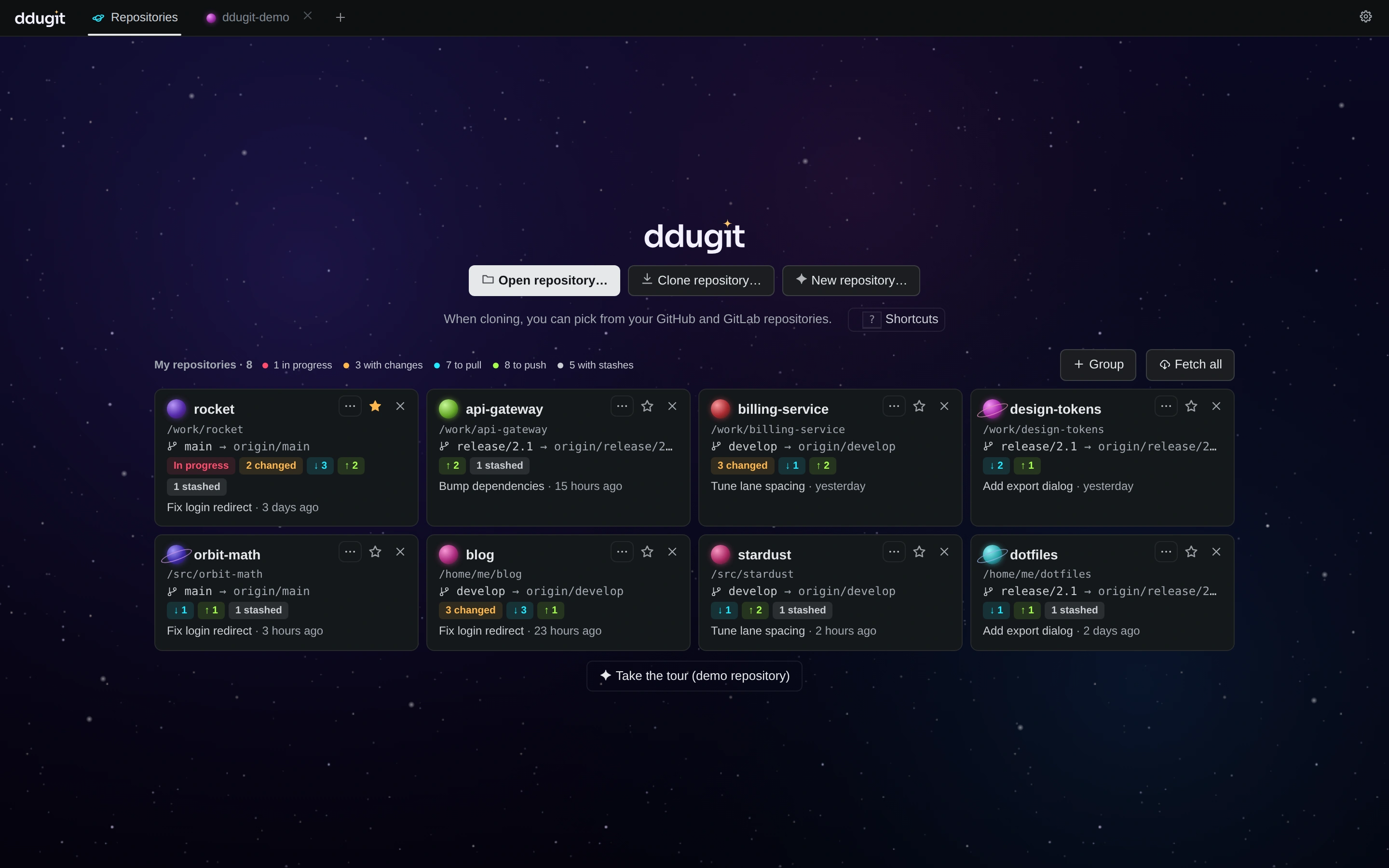
- Click a card to open the repository in a tab.
- The star (Add to favorites) keeps a repository at the front.
- The × (Remove from list) takes the card off the dashboard. The folder isn't touched. If you moved or deleted a repository, its card says Missing; this is how you clear it.
Fetch all fetches every repository on the dashboard that has a remote, a few at a time. Working trees and branches stay as they are. Each card shows its own progress and result, including Sign-in required when a remote needs credentials. If you have asked ddugit to confirm fetches, it asks first.
Repository groups
With many repositories, group them, for example by product or by client. Each repository belongs to at most one group.
- Create a group: click Group next to Fetch all and name it.
- Move a repository: open a card's ⋯ menu (Move to a group) and choose Move to <group>, Move to new group… or Remove from group. You can also drag a card onto a group, or onto Ungrouped.
- Move several: ⌘/Ctrl- or Shift-click cards to select them. A bar appears with the same moves, plus Clear selection. Dragging one selected card moves them all.
- Fold: click a group's name to collapse or expand it.
- Open all on a group's header opens each of its repositories in a tab.
- A group's ⋯ menu has Rename, Change color, Move up, Move down and Ungroup (repositories are kept).
When several ungrouped repositories share an owner on their remote or sit in the same parent folder, ddugit suggests a group for them. Choose Group them or No thanks.
Groups also have their own Fetch button, and the selection bar has one too, so you can fetch just one client's repositories.
Free and Pro on the dashboard
On Free, the dashboard shows the status of 3 repositories: your favourites first, then the most recently used. Other cards show only the name and folder, with a Show status button. They still open with a click. With ddugit Pro, every card shows its status.
Batch actions (Pro)
Group headers and the selection bar have two more buttons, which work on all of those repositories at once:
- Pull fast-forwards each repository's current branch to its upstream (
git pull --ff-only). It goes to repositories on a branch with an upstream and no operation in progress. A repository whose branch has diverged is left alone and its card says Diverged. - Branch… asks for a branch name and switches every repository to it. Where the branch doesn't exist, it's created at the current commit. Repositories whose uncommitted changes would be overwritten are skipped.
Results show on each card, and a message sums up how many succeeded and failed. On Free, the buttons carry a Pro badge and explain what they do.
Worktrees
A worktree is a second (or third) folder for the same repository, with another branch checked out. Commits, branches and stashes are shared, so you can, for example, fix a bug on main without stashing your half-done feature.
The Worktrees section in the sidebar lists every worktree, the main one included. The one this tab shows is marked here, and a folder that no longer exists says folder missing. Click a worktree to open it in its own tab.
Add a worktree
- Click + (Add worktree) on the section, or right-click a branch and choose Open in a new worktree….
- Choose Existing branch or New branch. A branch can be checked out in only one worktree at a time, so the list offers only free branches.
- Pick the Worktree folder and click Add and open in a tab.
If you check out a branch that's already checked out in another worktree, ddugit opens that worktree in a tab instead.
Remove and prune
Right-click a worktree for Open in a tab, Copy path and Remove worktree…. Removing deletes the folder; the branch and its commits stay. If the folder has uncommitted changes, ddugit warns you and asks again with Remove with changes. For a worktree whose folder is already gone, choose Prune missing folders to clear Git's record of it.
Submodules
When a repository has submodules, the Submodules section in the sidebar lists them with their state:
- not initialized: not checked out yet.
- up to date: at the commit the parent repository records.
- different commit: checked out at another commit; hover to see both.
- modified: has uncommitted changes.
The refresh button on the section, Update all (init as needed), runs git submodule update --init --recursive: every submodule, nested ones included, is checked out at its recorded commit. Click a checked-out submodule to open it in a tab as a repository of its own.
Right-click a submodule for Open in a tab, Update to the recorded commit, Copy URL and Sync URL from .gitmodules (git submodule sync, after someone changed a submodule's URL). If fetching a submodule needs credentials, ddugit says so; set up access to its remote first. To get submodules while cloning, open Advanced in the clone dialog and tick With submodules.
Git LFS
Git LFS keeps large files, such as images or design files, outside the repository: Git stores a small pointer and LFS downloads the content. The Git LFS section in the sidebar appears when Git LFS is installed on your computer or the repository already uses it. It lists the tracked patterns, such as *.psd.
- Track a pattern: click + (Track files with Git LFS), enter a pattern and click Track. This updates
.gitattributes, which you then commit. - Stop tracking: click the × next to a pattern. Again, commit the updated
.gitattributes. - Files not downloaded: when some LFS files are still pointers in your working tree, the section says how many. Click Download (
git lfs pull). - LFS not enabled: if the repository uses LFS but this computer hasn't set it up, checkouts don't download the real files. Click Enable Git LFS (
git lfs install). - Git LFS not installed: large files appear only as pointers. Follow How to install Git LFS, then come back.
In the diff sheet, a file stored in LFS shows as a Git LFS object: its size and object ID Before and After, rather than the pointer's text.
Worktrees, submodules and Git LFS are all part of Free. See pricing for what Pro adds.