Squash and reorder commits (interactive rebase) in ddugit
A branch full of “wip” and “fix typo” commits is hard to review. In ddugit you turn it into a few clear commits by dragging rows in a list: no editor, no todo file.
Updated
This is Git's interactive rebase (git rebase -i). ddugit builds the plan with you, checks it, and runs the rebase. Every rewritten commit gets a new ID, so do this on commits you haven't shared yet, or on a branch only you work on.
1. Open the commits you want to tidy
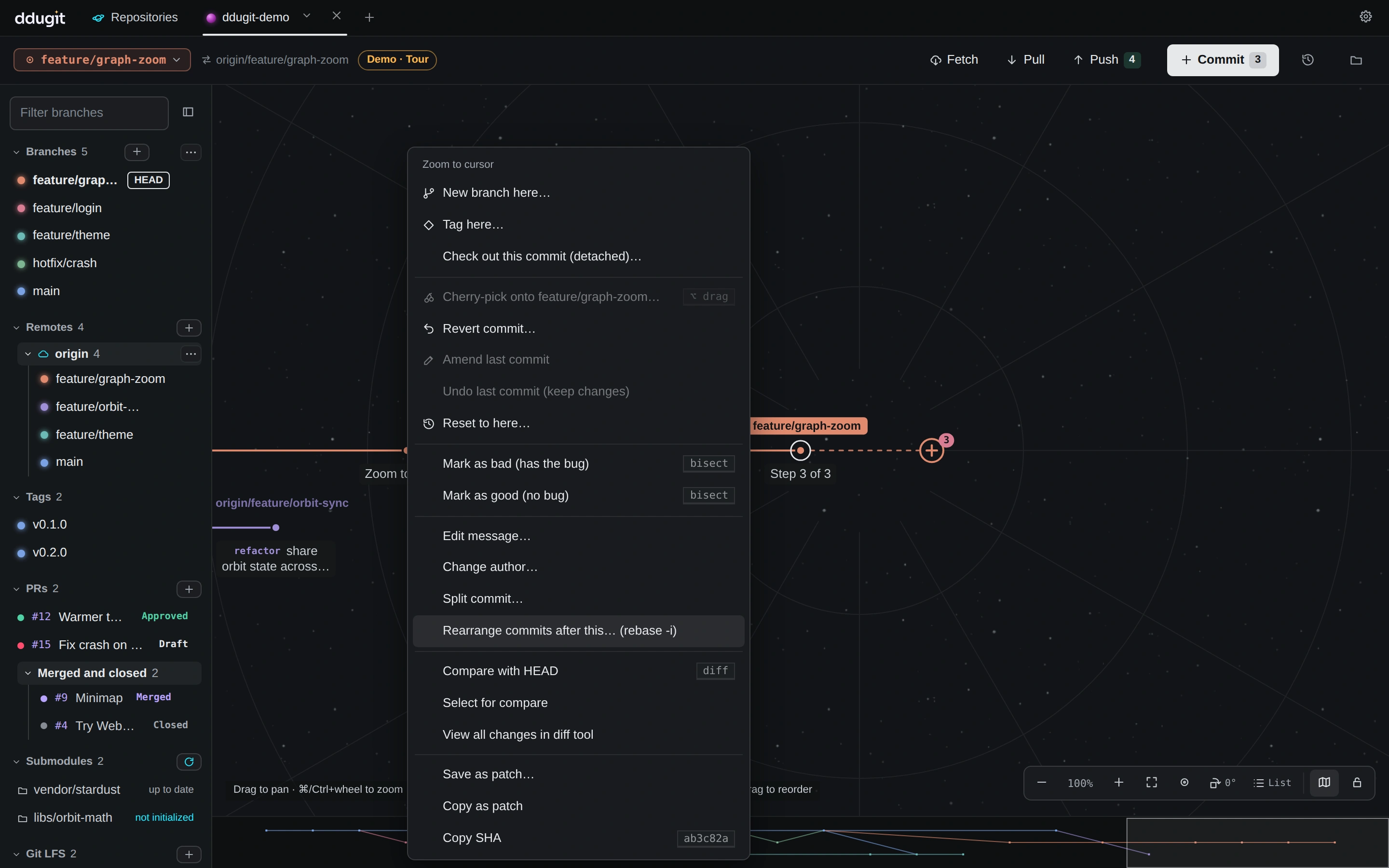
- On the graph, find the last commit you want to keep as it is: the one just below the commits to change.
- Right-click it and choose Rearrange commits after this… (rebase -i).
2. Reorder and fold
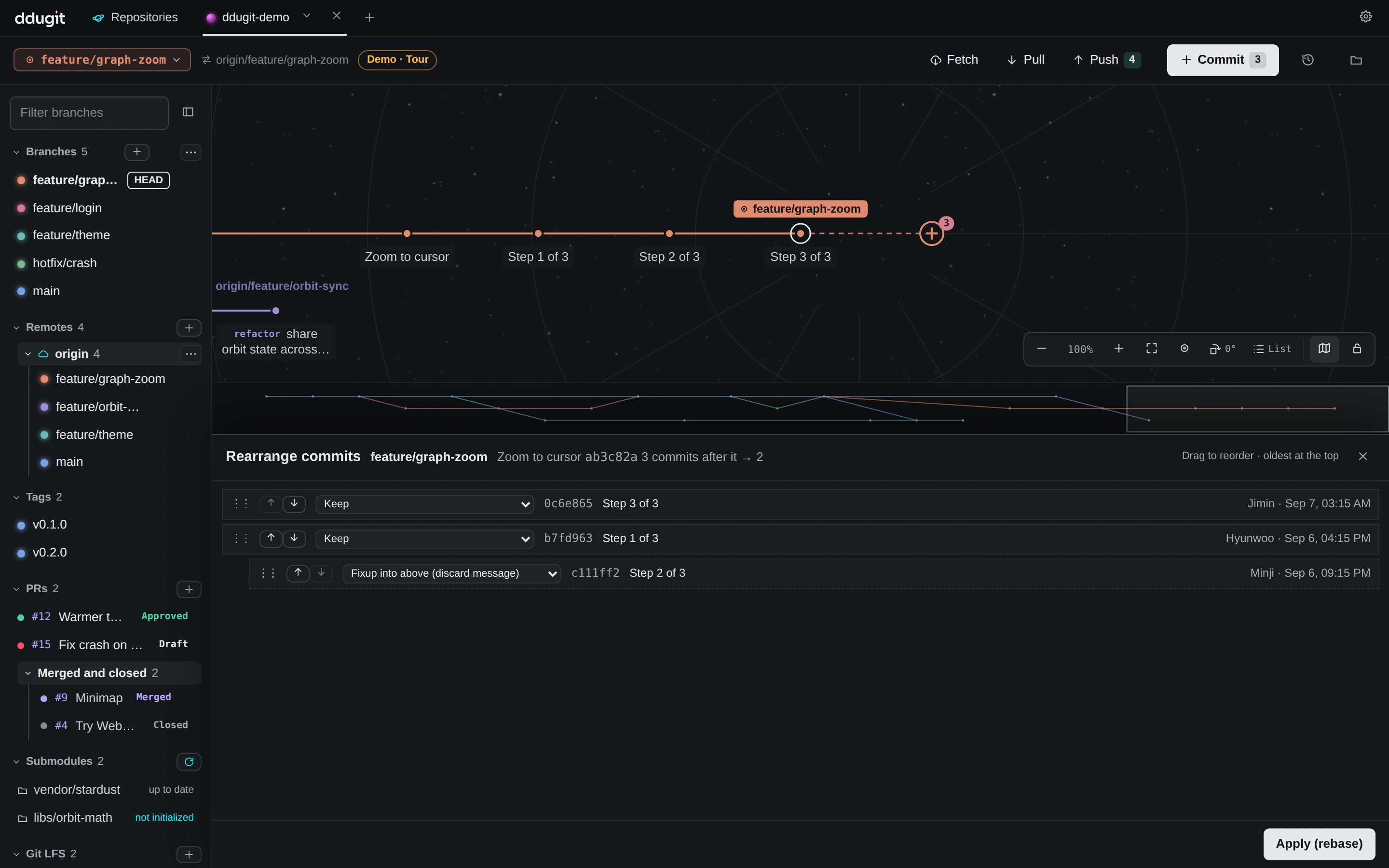
The Rearrange commits sheet lists every commit after it, oldest at the top. The header shows how many commits you start with and how many you'll end up with.
- Reorder: drag a row by its handle, or use the up and down arrows.
- Fold a fix into the commit above: choose Fixup into above to keep only the message above, or Squash into above to combine both messages.
- Leave a commit out: choose Drop.
- Keep leaves a commit as it is.
3. Apply
Click Apply (rebase). The graph redraws with the new commits when it finishes. ddugit checks the plan before it runs, so it won't let you squash the top commit (it has nothing above it) or drop every commit, and it tells you when the rewrite includes commits you have already pushed.
If you pushed the branch before, the next push needs to replace the remote branch. ddugit offers that when the push is rejected.
Moving a single commit
To move just one commit, hold Shift and drag it onto the commit it should follow. The same sheet opens with the commit already moved, ready to apply.
Branches with merge commits
If the commits include a merge, ddugit keeps the merges where they are (Git's --rebase-merges) and lets you reorder and fold commits within each stretch between them.
If a step stops on a conflict
Reordering can make a commit no longer apply cleanly. The rebase stops, a banner says so, and the conflicted files open in their own sheet: see resolving conflicts. Click Continue when they are fixed, or Cancel to put the branch back exactly as it was.
Even after a finished rebase, the old commits stay in the undo history. See undoing in ddugit to get them back.
On the command line
The same plan with plain Git. Start the rebase from the commit below the ones to change:
git rebase -i HEAD~3Git opens your editor with one line per commit, oldest first. Change pick to squash, fixup or drop, move lines to reorder, then save and close:
pick b7fd963 Step 1 of 3
fixup c111ff2 Step 2 of 3
pick 0c6e865 Step 3 of 3
Resolve a stopped step, or give up, and push the rewritten branch safely:
git add <file> && git rebase --continue
git rebase --abort
git push --force-with-lease