ddugit Pro: backports, stacks and offline transfer
ddugit Pro adds tools for work that spans many branches and many repositories: backports, stacked branches, release notes, air-gapped transfer, dashboard batch actions and pull requests on private servers.
Updated
Free and Pro
Free has no time limit and covers everyday Git: the branch map, commits and staging, merging and rebasing by drag, interactive rebase, conflicts, stashes, undo, bisect, worktrees, submodules and Git LFS, and pull requests for public repositories on GitHub and GitLab. Nothing in the earlier chapters needs Pro, except where they say so.
Pro is a single payment of $29: you keep it for good, with every future update, on up to 3 of your devices at a time. There is no subscription and no trial. For a whole organization, including networks with no internet access, there is a site license. See pricing for the comparison.
Pro features stay visible on Free, with a Pro badge. Clicking one explains what it does, with Buy Pro and I already have a license. If you had Pro and it turns off, what you made with it, such as stacks and backport marks, stays in your repositories.
Backports
The backport sheet lists the commits one branch has that another doesn't yet: fixes on main that a release branch still needs, or changes in the original project (upstream/main) that a customer's fork hasn't taken.
Open it from a branch's menu with Backport: commits missing from <your branch>…, or with Backport… in the ⋯ menu above the branch list. Choose From (where fixes land) and Into (the branch that needs them). To compare with another repository, add it as a remote and choose its branch as From.
Each commit gets a state:
- Missing: not on the target yet.
- Applied: the same change is already there under another commit ID (Git's
--cherry-markcompares the patches). - Applied (-x): an earlier cherry-pick recorded this commit in its message (
cherry picked from commit …). It counts even when that pick needed conflict fixes and the patch no longer matches. - Ignored: you marked it as not needed for this target.
Merge commits are left out, since their changes arrive with their parents. The tabs show the Missing commits, All of them, or By target: one row per local branch with its missing, applied and ignored counts against the same source, for when one repository carries several customers' branches. The refresh button fetches every remote and compares again.
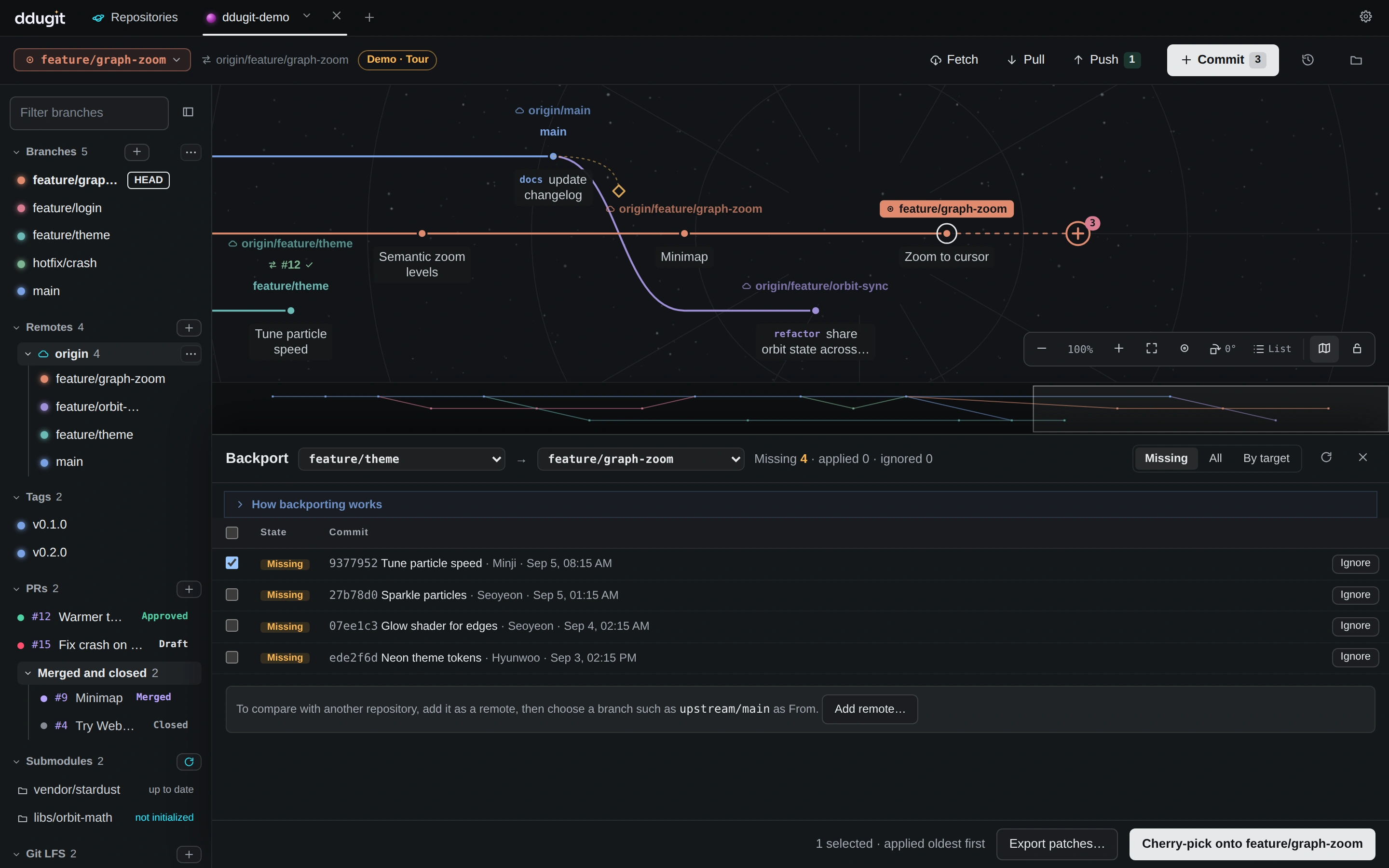
With Pro, tick the missing commits you want (or select all missing) and:
- Cherry-pick onto <target> applies them oldest first, each with
-xso the next comparison recognises it. ddugit checks out the target first when needed. - Export patches… writes them as numbered
.patchfiles into a folder, for a repository you can't push to. - Ignore and Unignore mark commits the target doesn't need. Marks are kept per target branch, in this repository only.
Comparing is free. The cherry-pick and backport guide walks through a full backport.
Stacked branches
A stack is a chain of small branches, each built on the one below, such as main ← api ← ui, so each can be reviewed as its own pull request. When a lower branch changes, every branch above it has to be moved onto its new tip. ddugit remembers the chain and does that in one step.
Build stacks from a local branch's menu:
- Stack a new branch on this… creates a branch at this one's tip, stacked on it, and switches to it.
- Stack on another branch… puts an existing branch on a parent you pick, or moves it to another.
- Remove from stack takes a branch out. Its commits stay.
Stacked branches appear in the Stacks section of the sidebar: one group per stack, starting from what it's built on, each branch indented under its parent with its number of commits. A branch whose parent has moved on says Needs restack; one whose parent was deleted says Parent branch missing, and you right-click it to choose another parent.
Restack rebases each branch onto the one below it, from the bottom up, then returns you to the branch you were on. For each branch it remembers the parent's tip it was last built on and replays only the commits after that (git rebase --onto <parent> <base> <branch>). So when you amend a lower branch, or it is squash-merged, its old commits aren't replayed again on top. Commit or stash your changes first. If a rebase stops on conflicts, resolve them and continue, then click Restack again to carry on from there.
The parent and base live in the repository's local Git config (branch.<name>.ddugit-parent and branch.<name>.ddugit-base), so they follow a branch when you rename it.
Release notes
Right-click a tag or a local branch and choose Release notes up to here…. ddugit collects the changes between that point and From, which starts at the previous tag. Pick another tag, or First commit for everything.
- It reads the first-parent line, so a branch that takes pull requests gives one line per pull request (the squash commit or the merge commit), not every commit inside it.
- Lines are grouped by their Conventional Commits type: Breaking changes, Features, Bug fixes, Performance, Refactoring and Documentation. Each line has its pull or merge request number and author.
- Include other changes (chore, ci, test…) adds an Other changes group.
- Set the Title, edit the Markdown as you like, and click Copy Markdown. What you edit is what gets copied.
Air-gapped transfer
For networks with no connection to yours, such as a customer site or a secure lab, ddugit moves commits as Git bundle files you carry across. Open it from the ⋯ menu above the branch list: Air-gapped transfer….
Export
- Enter a Destination, such as the customer's name.
- Tick the Branches to send. Each shows what will go: Only changes since the last export to that destination, or Everything from the start the first time.
- Click Choose folder and export. ddugit writes the bundle and a
.sha256file next to it, insha256sumformat, so the copy can be checked on either side, even without ddugit.
ddugit remembers what each destination received, in the repository's local config, so the next bundle holds only new commits. Export everything again, ignoring past exports starts over, for example when the other side lost a bundle. Past exports lists what each destination last got.
Import
- Switch to Import and click Choose bundle….
- ddugit checks it first: whether the checksum matches its
.sha256file (or that there is none), and whether this repository has the commits the bundle builds on. If it doesn't, import the earlier bundle first. - Under Import as, give it a name and click Import. The branches arrive under
refs/remotes/<name>/and show on the map like a remote's branches, ready to merge or check out.
Dashboard: all repositories and batch actions
On Free, the dashboard shows the status of 3 repositories. Pro shows every one, and adds Pull (fast-forward only) and Branch… (switch every repository to one branch, creating it where needed) for a group or a selection of cards. See Many repositories for the details.
Pull requests on private and company servers
On Free, ddugit shows open pull requests and merge requests on the map for public repositories on github.com and gitlab.com. Pro adds private repositories and self-hosted servers, such as GitHub Enterprise and self-managed GitLab. Without Pro, those show “… integration for private repositories is a Pro feature” instead. Connecting your account and creating pull requests are covered in Branches, merges and remotes.
Activate Pro
After buying Pro, open Settings (the gear, or ?) and go to License.
- Click Activate with your ddugit.com account. Your browser opens ddugit.com.
- Sign in with the account you bought Pro with. Pro turns on in the app by itself.
The license is checked on your computer, so ddugit works offline once Pro is on. Each activation uses one of your 3 devices. If all are in use, ddugit says so: free one first.
A computer without internet
Open Paste license in the same section, paste the offline activation code from your account page on ddugit.com, and click Apply license. Site licenses are pasted here too.
Move Pro to another computer
On the computer you're leaving, click Deactivate this device and confirm with Deactivate. That frees its place for another device. You can also remove a device on your account page on ddugit.com, for instance one you no longer have; ddugit turns Pro off on it the next time it checks.