Reading the branch map in ddugit
The branch map is ddugit's main view: your whole history drawn as lines and stops, which you pan and zoom like a map. This chapter covers how to move around it, what each mark means, how to search it, and how to change the way it looks.
Updated
Moving around
By default, time runs from left to right, so the newest commits are on the right. Each line of work keeps its own lane, and merges draw lines between lanes.
- Pan: drag an empty part of the map. A trackpad scrolls in both directions.
- Scroll: the mouse wheel scrolls along the timeline; Shift + wheel moves up and down across the lanes.
- Zoom: ⌘/Ctrl + wheel, or pinch on a trackpad, zooms around the pointer. + and - zoom in and out, and 0 fits the view. The map zooms from 8% to 300%.
- Go to HEAD: press H to centre the map on the commit you have checked out.
- Rotate: press R to turn the map 90°. Turned so time runs down the screen, the wheel scrolls history like a list.
- Keyboard: the arrow keys step through commits. ← / → go to the parent or child, ↑ / ↓ to the nearest commit in the lane above or below, Enter opens the selected commit's menu, and Esc clears the selection.
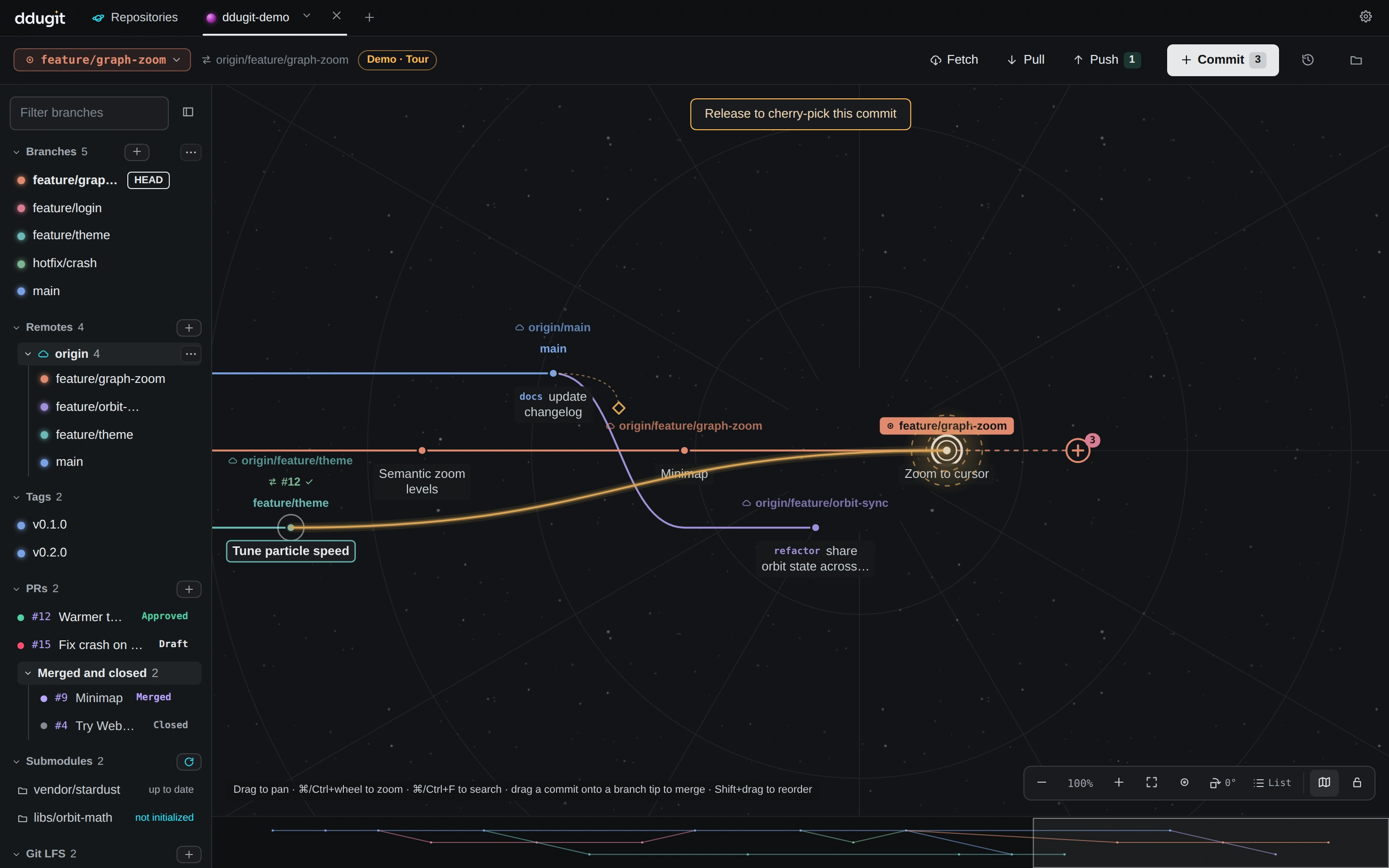
The controls at the bottom right of the map do the same: Zoom out (-), the current zoom, Zoom in (+), Fit to view (0), Go to HEAD (H), rotate (with the current angle), List, the minimap and the map lock.
ddugit loads the most recent commits first: 3,000 by default, set under Commits to load at a time in settings. When there is more, the hint line at the bottom says showing the latest that many, and ⋯ Load older commits at the old end of the map reads the next batch.
What's on the map
- Commits are the dots. Hover one for a card with its summary, the start of its message, who made it and when, and the files it changed. Click it to open it in the inspector on the right; right-click it for everything you can do with it.
- HEAD is the commit you have checked out, ringed and labelled with its branch. Next to it, the + opens the commit panel and counts the files you have changed.
- Badges name the commits that branches and tags point to: local branches, remote branches (with a cloud mark), tags, and open pull or merge requests (
#12on GitHub,!12on GitLab) with a mark for their checks or review. Right-click a badge for that branch's or tag's menu. - Stashes are small diamonds next to the commit they were taken on. Click one to see what it holds.
Pull request badges need GitHub or GitLab connected from the pull request section of the sidebar. For private repositories and self-hosted servers they are a Pro feature.
Commit captions and type chips
Each commit's summary is printed under its dot, on a small backing panel, in up to two lines. When a summary follows a known pattern, ddugit puts a coloured chip in front of it and shortens the text:
- Conventional Commits types such as
feat,fix,docs,perf,refactor,testandchore(and close relatives likebuildorci), with the scope kept:feat(graph): Zoom to cursorshows afeatchip andgraph Zoom to cursor. mergefor merge commits, shortened tobranch → target;revertfor reverts;fixup!,squash!,amend!andWIPcommits.- A pull request number at the end, such as
(#123), is pulled out and shown on its own.
What changes as you zoom
Zoomed out, text keeps its size and the map shows less of it, so you can still read its shape. Zoomed in past 100%, the text grows with the map, a little slower than the map itself (about 1.4× at 200% and 1.6× at 300%), so a closer look also reads larger. To make map text bigger or smaller at every zoom, see map text size.
- 60% and closer: full captions with their chips.
- 30% to 60%: captions become a short single line without the chip, and neighbours give way when there is no room. The commit you hover or select always shows its full caption.
- Below 80%: remote branch badges are hidden. Local branches, tags and pull requests stay.
- Below 50%: long straight runs of commits fold into a bar labelled with the number of commits. Click a bar to open it up.
- Below 30%: labels are hidden and only the lines remain.
Minimap and map lock
The minimap is a strip along the bottom of the map (or down the side, when the map is rotated) showing all the loaded history, with a box around the part on screen. Click or drag in it to jump. Press M or use the map button to show or hide it.
Dragging one commit onto another merges, cherry-picks or rebases (see dragging on the map). If you'd rather not do that by accident, press L or click the lock to Lock the map. A locked map only pans when you drag; menus and buttons still work. Press L again to unlock. Both choices are also in Settings → Appearance → Branch map.
List view
Click List in the map controls to see history as a table instead: one row per commit with the graph lines, its branch, tag and pull request badges, the Message, Author, Date and Commit SHA. When you have uncommitted changes, a row at the top counts them; click it to open the commit panel. Use ↑ / ↓ to move, Enter or right-click for the menu, and H to jump to HEAD. Search, menus and multi-select work the same as on the map. Click the button again to go back to the map; ddugit remembers which one you used.
Map styles and themes
Open Settings → Appearance to change how the map is drawn. Map style has three choices:
- Gauge (the default): an instrument panel, with thin curved lines, small dots and plain text labels.
- Route map: a transit map, with thick lines that bend at 45°, stations for commits, interchanges for merges and route signs for branch names.
- Space: neon lines on a night sky with pill-shaped labels, and glow and twinkling stars in the dark theme.
Map text size is Small, Default or Large. It sets the size of branch names, tags and commit messages on the map at every zoom level. Larger text needs more room, so a few more captions give way when neighbours are close.
Theme is System, Dark (the default) or Light. System follows your operating system and switches when it does. Every map style has colours for both themes; in the light theme the map is drawn like a printed chart.
Under Effects:
- Map backdrop (star chart / space): a faint star chart behind Gauge and Route map, or a galaxy behind Space. Turn it off for a plain background. It also sets the home screen's background.
- Glow (space, dark theme): the light around lines and commits. It only applies to the Space style in the dark theme.
- Sparkle effects: small animations, such as sparkles along the lines and a burst when a new commit appears. They start off if your system asks for reduced motion.
Branch colours, focus and hiding
ddugit gives each lane a colour automatically. To choose your own, click the coloured dot next to a branch in the sidebar, or right-click a branch and choose Change branch colour…. Pick a hue and a shade, or type a Colour code; Auto goes back to the automatic colour. A local branch and its remote branch share the colour, and ddugit adjusts it so it stays readable in both themes. Colours are saved per repository.
Click a branch in the sidebar to focus it: the map centres on its tip and highlights its history, dimming the rest. Click more branches to add them to the focus, click a focused one again to remove it, or click an empty part of the map to clear it.
The eye next to a branch hides it: Hide on the branch map removes the commits that only that branch reaches, which is useful for old experiments or noisy bot branches. Hiding a local branch also hides the remote branch it tracks. The current branch can't be hidden. Click the eye again (Show on the branch map) to bring it back. Hidden branches are saved per repository.
Selecting several commits
⌘/Ctrl-click commits to pick them one at a time; Shift-click picks a whole line of commits up to the one you click. Right-click any picked commit to act on all of them:
- Cherry-pick 3 commits onto main… copies them onto the current branch, oldest first.
- Revert 3 commits… undoes commits that are on the current branch, newest first.
- Unpick 3 commits clears the selection.
See cherry-picking and backporting for the details.
Searching history
Press ⌘/Ctrl + F to open the search bar over the map. Choose where to search under Search in:
- Graph (the default) filters the commits already loaded as you type. It matches the message, author name or email, branch and tag names, and SHA prefixes of four characters or more. Matching commits light up on the map; Enter and Shift + Enter step through them. Search all history repeats the search by message over everything.
- Message, Author, File and Content ask Git about the whole history when you press Enter, across all branches, remote branches and tags. File takes a path, folder or pattern such as
docs/*.md, and follows a single file through renames. Content finds commits that added or removed some code or text. Message, Author and Content have a Regex option.
Whole-history results are listed newest first, up to 200 at a time; narrow the search to see others. A search that runs for too long stops and shows what it found so far. Picking a result older than the loaded history loads more of it first, then centres the map on that commit.
Dragging on the map
Commits can be dragged onto branch tips. Hold a key while you drag to choose what happens; a hint at the top of the map says what releasing will do before you let go.
- Drag a commit onto a branch tip to merge it into that branch. See branches, merges and remotes.
- ⌥ Option/Alt + drag onto a branch tip to cherry-pick the commit onto it. See cherry-picking.
- Shift + drag a commit of the current branch onto another of its commits to place it right after that one. The rearrange sheet opens with the new order for you to review. See interactive rebase.
- ⌘/Ctrl + drag from the current branch's tip onto another branch's tip to rebase the current branch onto it. See branches, merges and remotes.
Each drag asks you to confirm before anything changes. To turn dragging off, lock the map. Every shortcut for the map is in the shortcut table.