Undo commits and recover them from the reflog in ddugit
Almost nothing you commit is truly lost. ddugit puts every undo on the commit's right-click menu, and keeps a list of every place your branch has been so you can get back.
Updated
Which undo do you need?
- The last commit was wrong and isn't pushed: Undo last commit.
- The branch should go back to an earlier commit: Reset to here.
- The commit is already pushed and shared: Revert commit, which adds a new commit instead of rewriting history.
- Commits disappeared after a reset, rebase or deleted branch: the undo history.
Undo the last commit
Right-click the newest commit on your branch and choose Undo last commit (keep changes). The commit is gone from the branch and its changes come back staged, ready to fix and commit again. To change only the message or add a forgotten file, use Amend last commit instead.
Reset a branch to an earlier commit
- Right-click the commit the branch should point to and choose Reset to here….
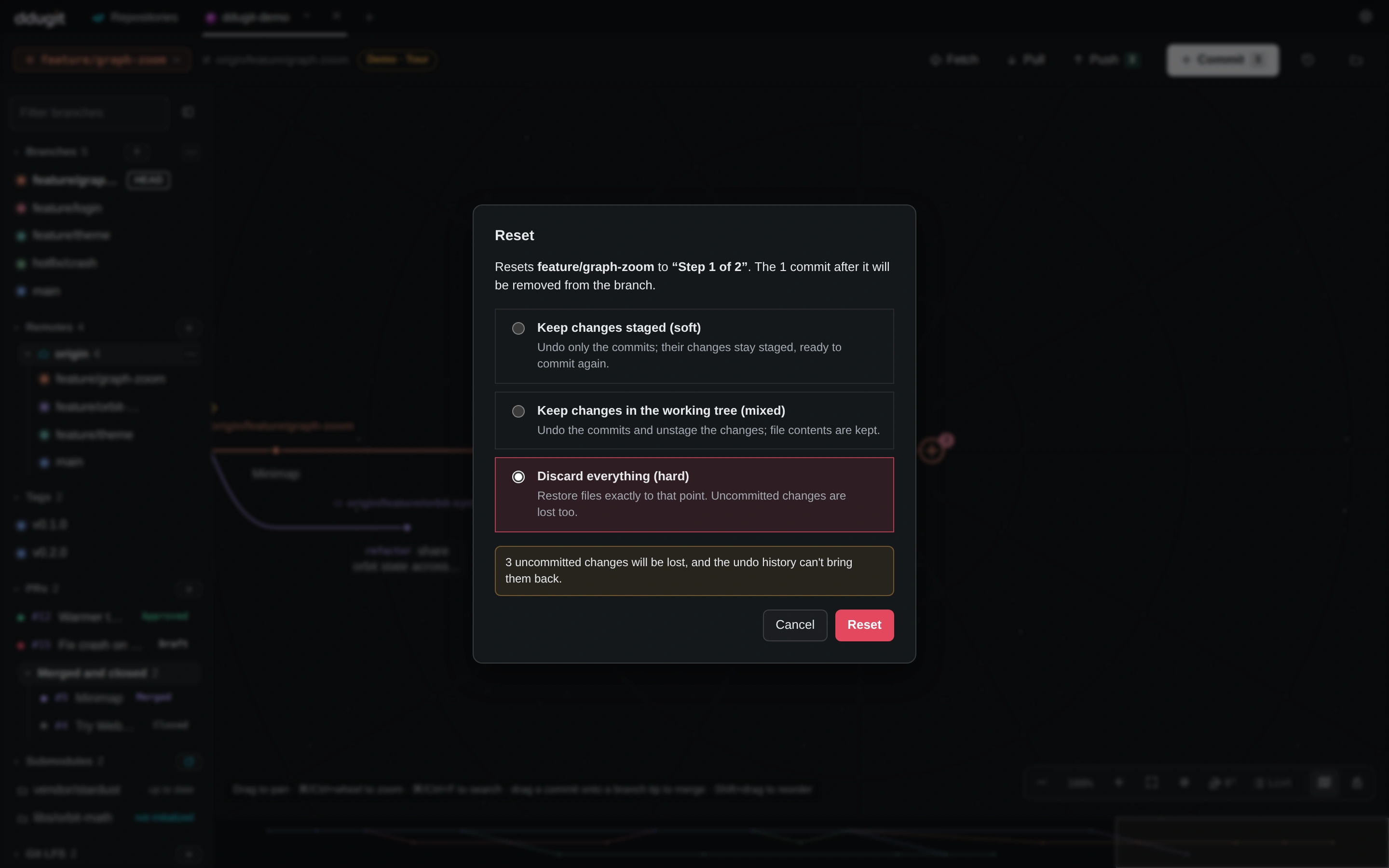
- Choose what happens to the changes in the commits you remove:
- Keep changes staged (soft): only the commits go; their changes stay staged.
- Keep changes in the working tree (mixed): the changes stay in your files, unstaged.
- Discard everything (hard): your files go back exactly to that commit. Uncommitted changes are lost too.
- Read the dialog: it says how many commits leave the branch, warns if any were pushed, and, for a hard reset, how many uncommitted changes would be lost for good. Then click Reset.
Undo a pushed commit
Right-click the commit and choose Revert commit…. ddugit adds a new commit on your branch that undoes it, so nobody who already pulled has to rewrite anything. If later changes touch the same lines, the revert stops like a merge: see resolving conflicts.
Get back lost commits from the undo history
Every time your branch moves (a commit, reset, rebase, checkout, merge or pull), Git remembers where it was. ddugit shows that list as the undo history.
- Click the Undo history button (the clock) at the right end of the top bar.
- Find the entry from before things went wrong. Commits no branch reaches any more are marked Lost.
- Choose Recover as branch to put a new branch on it, or Reset to here… to move your current branch back to it.
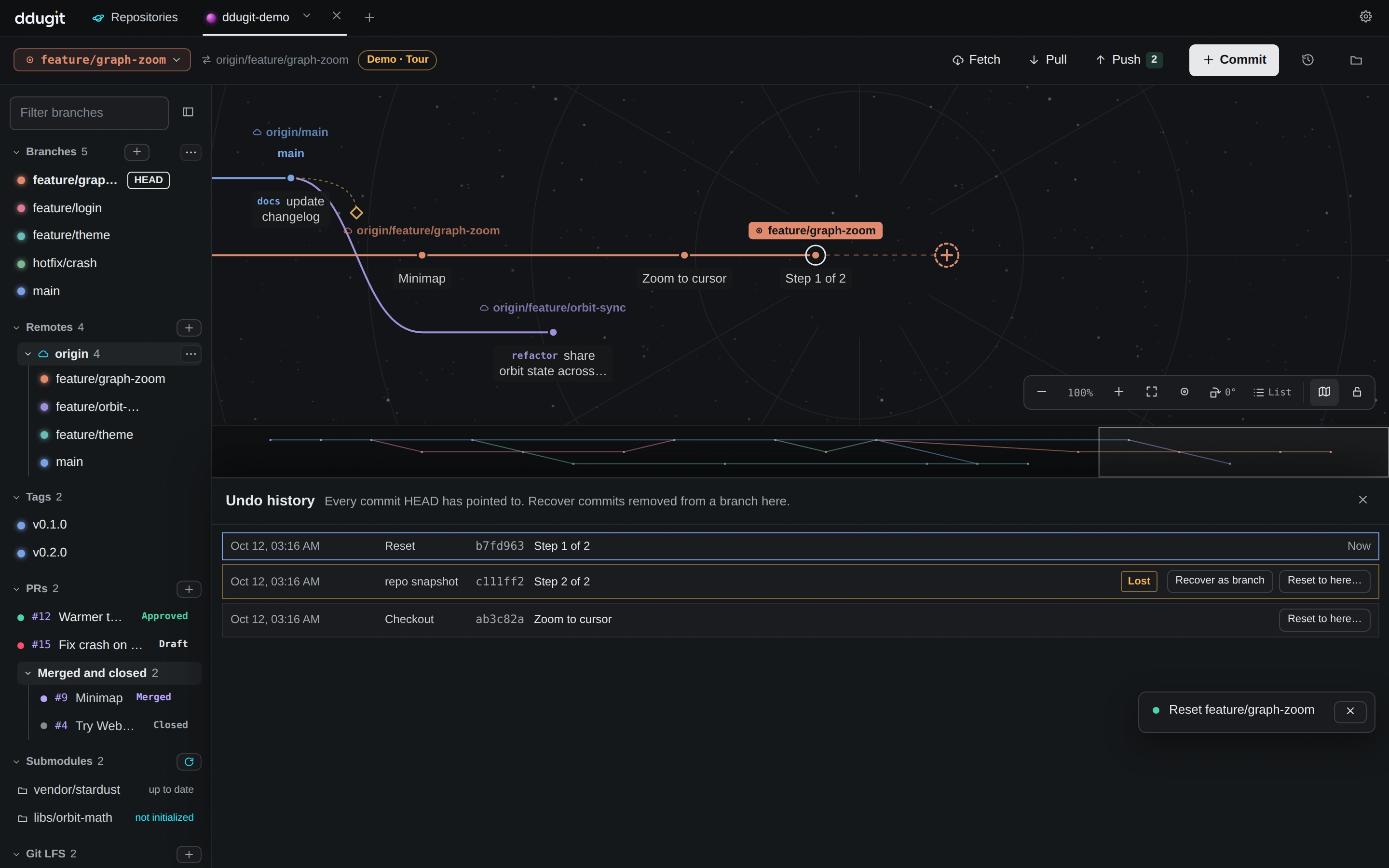
The undo history lives in your local repository and doesn't last forever: by default Git keeps entries for lost commits for 30 days. Recover what you need soon. Changes that were never committed aren't in it at all, which is why the hard reset warns you.
Deleting a branch with unmerged commits also warns you first, and those commits stay in the undo history.
On the command line
git reset --soft HEAD~1          # undo the last commit, keep its changes staged
git reset --mixed 4c1e9b2        # move the branch back, keep changes unstaged
git reset --hard 4c1e9b2         # move back and discard changes
git revert 7e44b09               # undo a pushed commit with a new one
git reflog                       # where HEAD has been
git branch rescued HEAD@{1}      # recover a lost commit as a branch
A rebase that went wrong is undone the same way: find the entry from just before it. See interactive rebase.