Resolve Git merge conflicts block by block in ddugit
A conflict means both branches changed the same lines and Git won't guess which one you want. In ddugit you answer it one block at a time, and you can always back out.
Updated
Conflicts can stop a merge, a rebase, a cherry-pick or a revert. Everything Git could combine on its own is already done; only the blocks where both sides changed the same lines are left for you.
1. Open the conflicts
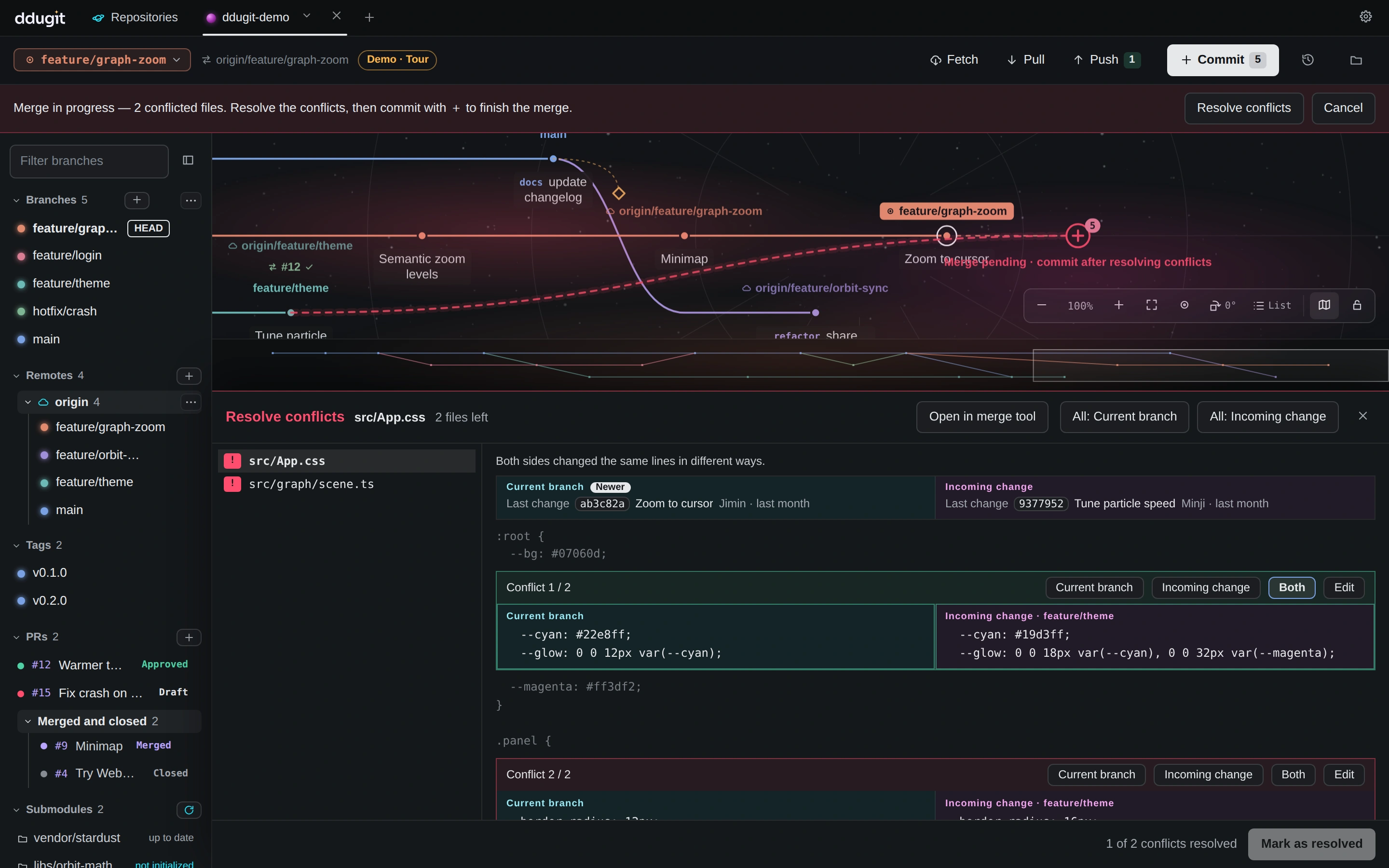
When an operation stops, a banner across the top says what is in progress and how many files conflict, and the graph shows the pending commit. Click Resolve conflicts. The conflicted files are listed on the left; the first one is open.
2. Choose a result for each block
Each conflict is a block with the two versions side by side, labeled with where they came from: Current branch and Incoming change for a merge, Base branch and Your commit for a rebase. You never have to work out which one Git calls “ours”. For each block, choose:
- Current branch or Incoming change to keep one side,
- Both to keep both, one after the other,
- Edit to write the result yourself.
If one side is right for the whole file, use All: Current branch or All: Incoming change at the top. Binary files such as images can't be compared, so you pick a side.
3. Mark resolved and finish
- When every block in a file has a result, click Mark as resolved. The next file opens.
- When no files are left, finish the operation: commit with + to complete a merge, or click Continue in the banner for a rebase, cherry-pick or revert.
Backing out
Cancel in the banner aborts the whole operation and puts the branch back exactly where it was before, including files you already resolved. If a cherry-picked commit turns out to be on the branch already, ddugit says so and offers to skip it.
Getting fewer conflicts
- Merge or rebase from the main branch often, so the two sides never drift far apart.
- Keep branches short-lived and pull requests small.
- Avoid reformatting whole files in the same branch as a real change.
Conflicts also come up when you cherry-pick fixes to an older branch and when you reorder commits.
On the command line
Git writes both versions into the file between markers. Everything from the first to the last marker is one block:
<<<<<<< HEAD
  --cyan: #22e8ff;
=======
  --cyan: #19d3ff;
>>>>>>> feature/theme
Edit the file to the result you want, remove the markers, and stage it. To take one side for a whole file, check it out. During a rebase --ours is the branch you are rebasing onto and --theirs is your commit, the opposite of a merge.
git status                          # which files still conflict
git checkout --theirs src/App.css   # or --ours
git add src/App.css
git commit                          # merge; or: git rebase/cherry-pick/revert --continue
git merge --abort                   # back out (also rebase/cherry-pick --abort)